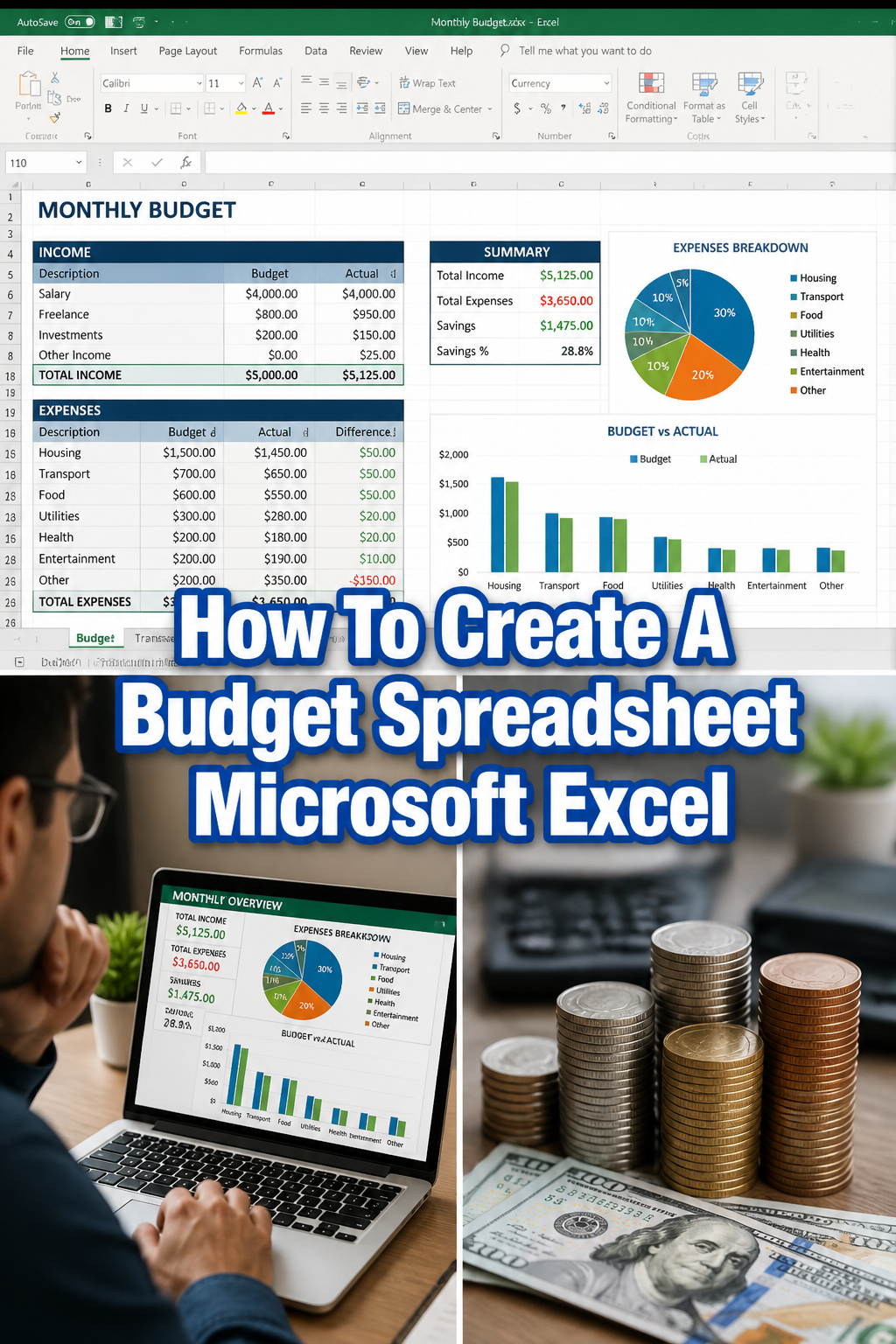
📊 How To Create A Budget Spreadsheet Microsoft Excel
📚 The Financial Literacy Library
The best investment you can ever make is in your own financial education. These 5 cornerstone books are what millionaires, financial advisors, and wealth-builders universally recommend for completely rewiring how you think about earning, saving, and investing money.
🧠 The Psychology of Money
Doing well with money isn't necessarily about what you know—it's about how you behave. Morgan Housel masterfully breaks down the emotional and psychological biases that secretly dictate our financial decisions, offering a true paradigm shift in how to view wealth.
🏠 Rich Dad Poor Dad
The #1 personal finance book of all time for a reason. This foundational read shatters the myth that you need to earn a high income to be rich, teaching you the critical difference between working for money and making your money work for you via assets.
📈 Atomic Habits
While not strictly a finance book, building wealth is absolutely dependent on the daily habits you cultivate. James Clear provides the definitive framework for breaking bad spending habits and effortlessly automating the good ones that lead to long-term success.
📊 The Simple Path to Wealth
The ultimate antidote to complex, intimidating financial advice. JL Collins provides an incredibly accessible, low-stress roadmap to financial independence through index fund investing, perfectly explaining why simplicity beats Wall Street complexity every time.
💳 I Will Teach You to Be Rich
A tactical, no-BS, 6-week program that actually works. Ramit Sethi teaches you how to crush debt, automate your savings, and negotiate your salary—all while guilt-free spending on the things you truly love. A must-read for modern money management.
Feeling a bit lost when it comes to your money? You’re not alone. I remember staring at my bank account, wondering where all my hard-earned cash went each month.
It felt like chasing a ghost until I finally decided to take control. Creating a budget spreadsheet in Excel was the game-changer for me, and it can be for you too. This guide will walk you through building your own, making financial clarity simple and achievable.
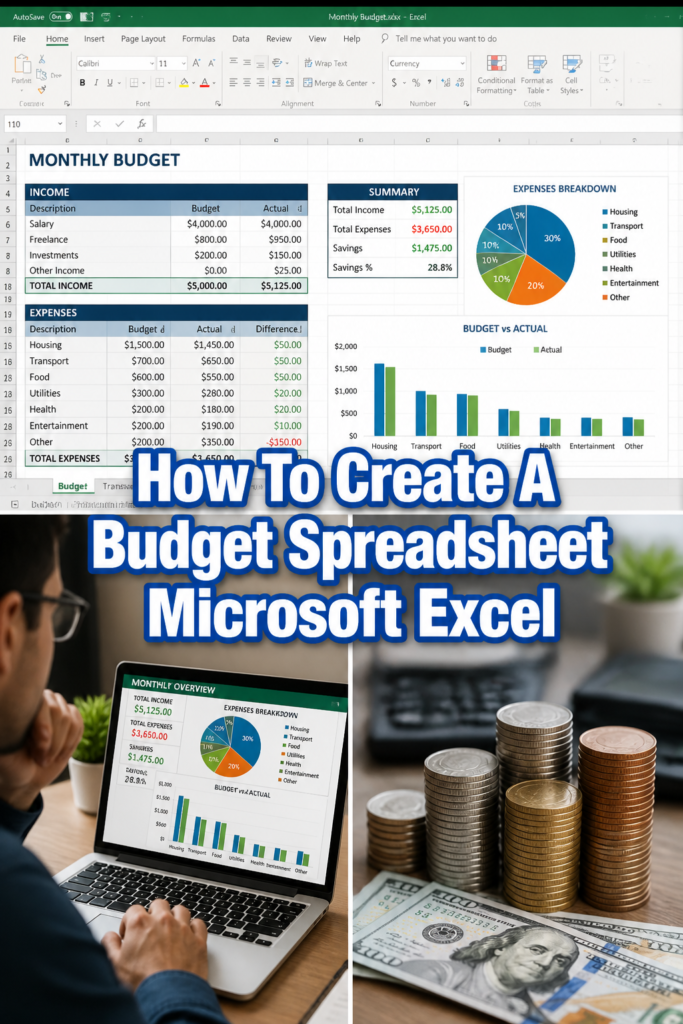
Quick Overview
This guide will empower you to build a personalized budget spreadsheet from scratch in Microsoft Excel. You’ll learn to track income, categorize spending, set financial goals, and gain a clear picture of your money flow.
- Time needed: 60-90 minutes (initial setup), 15 minutes weekly (maintenance)
- Difficulty: Beginner
- What you’ll need: Microsoft Excel installed, basic understanding of your income and regular expenses, a desire for financial clarity.
Step-by-Step Instructions
Step 1: Open Excel and Set Up Your Basic Structure
Begin by launching Microsoft Excel. A blank workbook will appear, ready for your financial masterpiece. We’ll start by labeling the columns to organize your data.
In Row 1, type the following headings into separate cells:
- Cell A1: Date
- Cell B1: Category
- Cell C1: Description
- Cell D1: Income
- Cell E1: Expense
- Cell F1: Balance
These labels form the backbone of your budget. They provide a clear framework for every transaction you record.
Pro Tip: Make your headings stand out! Select Row 1, then click the ‘Bold’ button and choose a distinct ‘Fill Color’ from the Home tab. This visual cue helps you navigate your sheet easily.
Step 2: List Your Income Sources
Now, let’s capture your money coming in. In Column D (Income), you’ll record all your earnings. This could be your salary, freelance payments, or any other money you receive.
Start by listing your main income for the month. For example, if you get paid on the 15th and 30th, enter those dates in Column A. Then, type “Salary” or “Paycheck” in Column C and the amount in Column D.
If you have multiple income streams, list each one separately. This gives you a comprehensive view of your total earnings. Understanding your income is the first crucial step to smart budgeting.
Step 3: Categorize Your Expenses (Fixed & Variable)
Expenses are where most budgets get tricky, but categorization makes it manageable. We’ll divide spending into two types: fixed and variable. Fixed expenses are predictable, like rent or loan payments. Variable expenses fluctuate, such as groceries or entertainment.
In Column B, you’ll assign a category to each expense. Common categories include:
- Fixed: Rent/Mortgage, Utilities, Loan Payments, Insurance, Subscriptions
- Variable: Groceries, Dining Out, Transportation, Entertainment, Personal Care, Savings
Take a moment to list your regular fixed expenses first. Enter the date they’re due, their category, a brief description, and the amount in Column E. This provides a baseline for your monthly spending.
Pro Tip: Create a separate “Categories” tab in your workbook. List all your categories there, then use Excel’s Data Validation feature to create a dropdown list for Column B in your budget sheet. This ensures consistency and speeds up data entry.
Step 4: Input Your Spending Data
This is the ongoing part of budgeting: tracking your actual spending. Every time you spend money, you’ll record it here. The more diligent you are, the more accurate your financial picture will be.
Enter the date of the transaction in Column A. Select the appropriate category from your dropdown list (if you created one) in Column B. Write a brief description in Column C (e.g., “Coffee from Starbucks,” “Gas station”). Finally, enter the amount spent in Column E.
This step is about mindfulness. It forces you to acknowledge where your money is going. Regular input prevents a huge, daunting task at the end of the month.
Step 5: Add Formulas for Totals & Balances
Excel’s power lies in its formulas. These will automatically calculate your totals, saving you time and preventing errors. We’ll add formulas for total income, total expenses, and a running balance.
First, let’s create a running balance. In Cell F2 (next to your first income/expense entry), type the formula: `=D2-E2`. This calculates the balance after your first transaction.
Then, in Cell F3, type: `=F2+D3-E3`. This takes the previous balance and adds new income or subtracts new expenses. Drag the fill handle (the small square at the bottom-right of Cell F3) down Column F to apply this formula to all subsequent rows.
Next, for monthly totals:
- Total Income: In a cell below your data (e.g., D50), type `=SUM(D:D)`.
- Total Expenses: In a cell below your data (e.g., E50), type `=SUM(E:E)`.
- Net Balance: In a cell next to your totals (e.g., F50), type `=D50-E50`.
These formulas give you an instant snapshot of your financial health. Seeing your net balance helps you understand if you’re spending more than you earn.
Step 6: Visualize Your Budget with Charts
Numbers can tell a story, but charts make it visually compelling. Excel’s charting tools help you quickly grasp your spending patterns. A pie chart is excellent for showing expense distribution.
Select your expense categories (Column B) and their corresponding amounts (Column E). Go to the ‘Insert’ tab and choose ‘Pie Chart’. Excel will generate a chart showing which categories consume the largest portion of your budget.
You can also create a bar chart to compare monthly income vs. expenses. Select your total income and total expense cells, then choose ‘Bar Chart’ from the ‘Insert’ tab.
Visualizing your data helps you identify areas for improvement. You might be surprised to see how much that “dining out” category actually adds up!
Step 7: Automate with Conditional Formatting
Conditional formatting highlights data based on rules you set. This is a fantastic budgeting hack for quickly spotting trends or potential issues. You can use it to flag overspending or ensure you’re hitting savings goals.
Select your ‘Expense’ column (Column E). Go to the ‘Home’ tab, click ‘Conditional Formatting’, then ‘Highlight Cells Rules’, and choose ‘Greater Than…’. Set a threshold, say $100, and choose a red fill. Any expense over $100 will now be highlighted in red.
You can also highlight your ‘Balance’ column (Column F). Set rules to turn cells green if the balance is positive and red if it falls below zero.
This visual feedback is incredibly powerful. It helps you stay on track without manually scrutinizing every number.
Step 8: Review and Adjust Regularly
A budget isn’t a “set it and forget it” tool. It’s a living document that needs regular attention. Life changes, and so should your budget. Make it a habit to review your spreadsheet weekly or bi-weekly.
Look at your actual spending versus your initial estimates. Are you consistently over budget in certain categories? That’s a sign to adjust your spending habits or reallocate funds. Are you underspending in others? Maybe you can divert that extra cash to savings or debt repayment.
Regular review keeps your budget relevant and effective. It’s how you learn, adapt, and continually improve your financial situation.
Step 9: Set Financial Goals
Your budget is more than just tracking; it’s a tool to achieve your dreams. Integrate your financial goals directly into your spreadsheet. This could be saving for a down payment, paying off debt, or building an emergency fund.
Create a separate section or even a new tab for “Financial Goals.” List your goals, target amounts, and target dates. Then, in your main budget sheet, create a specific “Savings” category.
Each month, consciously allocate a portion of your income to this “Savings” category. Watching that number grow will be incredibly motivating.
Pro Tip: Use Excel’s “Goal Seek” feature (Data tab > What-If Analysis) to figure out how much you need to save each month to hit a specific target by a certain date. It’s like having a financial advisor built right into your spreadsheet!
Step 10: Save and Protect Your Spreadsheet
After all your hard work, don’t forget to save your budget! Save it frequently to prevent any loss of data. Consider saving multiple versions (e.g., “Budget_Jan2024,” “Budget_Feb2024”) to track progress over time.
Go to ‘File’, then ‘Save As’, and choose a location on your computer or cloud storage (like OneDrive). Give it a clear name, such as “My Personal Budget 2024.”
For added security, you can password protect your workbook (File > Info > Protect Workbook > Encrypt with Password). Also, regularly back up your file to an external drive or cloud service.
Protecting your budget ensures your financial insights are always safe and accessible. This is your personal financial command center, treat it with care.
Common Mistakes to Avoid
Ignoring Small Expenses
Many people meticulously track big bills but let small, everyday purchases slip through the cracks. Those daily coffees, snacks, or app subscriptions add up quickly. Ignoring them can create a significant gap between your perceived spending and your actual outflow.
The solution is to track every single expense, no matter how small. Use your phone to quickly jot down purchases, or make it a habit to input transactions daily. Awareness of these “leakage” points is crucial for a truly accurate budget.
Being Too Restrictive
A budget that’s too tight or unrealistic is a recipe for failure. If you cut out all enjoyment or necessities, you’ll feel deprived and eventually abandon the budget altogether. It’s like a crash diet for your finances.
Instead, build some flexibility into your budget. Include categories for “fun money” or “miscellaneous.” Start with a slightly looser budget and gradually tighten it as you become more comfortable and identify areas where you can comfortably cut back.
Not Tracking Consistently
The biggest mistake is inconsistency. Creating a beautiful spreadsheet is only half the battle; the other half is regularly updating it. Sporadic tracking leads to incomplete data, making your budget useless for decision-making.
Set a dedicated time each day or week to update your spreadsheet. Treat it like any other important appointment. Consistency is the key to gaining real insights and making your budget a powerful tool for financial growth.
Forgetting to Review
A budget is not a static document. If you create it and never look at it again until the end of the month, you’re missing out on its potential. Your spending habits, income, and goals can all change.
Make it a habit to review your budget weekly or bi-weekly. Compare your actual spending to your planned spending. Use these reviews to make adjustments, identify areas for improvement, and stay aligned with your financial objectives.
Troubleshooting
Formulas Not Working
If your formulas aren’t calculating correctly, it’s usually a small error. Double-check your cell references. For example, if you typed `=SUM(D:D)` but your income data is in column C, it won’t work.
Also, ensure you haven’t accidentally typed a space before the equals sign (`=`). Excel needs the equals sign to be the very first character for it to recognize a formula. Click on the cell with the error and examine the formula bar at the top of Excel for typos or incorrect ranges.
Budget Never Balances
If your total income minus total expenses never quite matches your bank account, you’re likely missing transactions. The most common culprits are small cash purchases or automatic payments you’ve forgotten about.
Review your bank and credit card statements line by line against your budget. Pay special attention to recurring subscriptions or charges that might have slipped your mind. Adjust your categories to capture these, and make a conscious effort to record all cash spending.
Feeling Overwhelmed
Starting a budget can feel daunting, especially if you’re new to it. It’s easy to get bogged down in the details or feel discouraged by past spending habits. Remember, this is a journey, not a sprint.
If you feel overwhelmed, take a break. Start small, perhaps by just tracking expenses for a week without judgment. Focus on progress, not perfection. Break down the process into smaller, manageable steps, and celebrate small victories along the way. Your financial peace of mind is worth the effort.
Key Takeaways
- Your Excel budget spreadsheet provides crystal-clear visibility into your income and spending.
- Categorizing expenses helps you understand where your money truly goes, revealing areas for saving.
- Utilize Excel formulas to automate calculations, saving time and ensuring accuracy.
- Visualizing data with charts makes complex financial information easy to digest and act upon.
- Regularly reviewing and adjusting your budget is essential for its ongoing effectiveness and relevance.
- A budget is a powerful tool for achieving your financial goals, from debt repayment to wealth building.
Frequently Asked Questions
How often should I update my budget?
Ideally, you should update your budget daily or every other day. This keeps the task small and manageable, preventing a large backlog of transactions. At a minimum, aim for weekly updates to maintain accuracy and awareness.
What if my income changes frequently?
If your income varies (e.g., freelance, commission-based), focus on budgeting with your minimum expected income. Treat any extra earnings as a bonus that can go directly towards savings, debt repayment, or specific goals, rather than being absorbed into regular spending.
Is Excel better than a budgeting app?
Neither is inherently “better”; it depends on your preference. Excel offers unparalleled customization and flexibility, allowing you to tailor your budget exactly to your needs. Apps often provide automation and bank synchronization, which can be convenient but sometimes less flexible. Many people use a combination of both.
How do I handle unexpected expenses?
The best way to handle unexpected expenses is to budget for them! Create a “Miscellaneous” or “Emergency Fund” category and consistently contribute to it. This financial buffer prevents unexpected costs from derailing your main budget and causing stress.
Our Top Recommended Finds
- A dedicated notebook and pen: Perfect for jotting down cash transactions or quick expense notes on the go, making input into Excel later much easier.
- An external hard drive or cloud storage subscription: Essential for securely backing up your valuable budget spreadsheet and other important financial documents.
- A personal finance book: Reading a well-regarded book on personal finance can deepen your understanding of money management and inspire new budgeting strategies.
Embrace Your Financial Power
You’ve just built the foundation for a more secure and prosperous financial future. Creating an Excel budget isn’t just about numbers; it’s about gaining control, building confidence, and setting yourself on a path to achieving your dreams. This is your personal financial command center.
Don’t let this newfound knowledge sit idle. Open Excel right now and start inputting your data. The sooner you begin, the sooner you’ll see the incredible impact it has on your money mindfulness. Consider exploring more advanced Excel features like pivot tables for deeper analysis, or start planning your next big financial goal. Your journey to financial freedom truly begins today.